

In June 2022, at the direction of the Board of Directors, the Online member lookup has been removed due to security and privacy concerns. As a result, Ten-Ten International has created a new stand-alone Member Lookup Utility that can be installed on your personal computer.
This utility is available for Windows Machines using Windows 8 or better. It will not function correctly on Windows 7 or prior. It should run under the WINE emulator for Linux and Mac devices.
At the present time, due to the same security and privacy concerns with the online lookup, there are no plans to create Applications that will run on IOS or Android for phones and tablets.
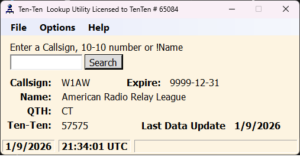
This utility is for paid up members only. If your dues are not current, the utility will cease to function with the exception of the Data Update and the Win1010 Export..
Click here to download the current Windows version (2.5.6.5). If you are upgrading from a previous version, Make sure you update the database.
Beginning with version 2.1.4, there is an option in the file menu to create a new 1010.txt file for your Win1010 software.
After you install this program and run it the first time, you will be asked to input your 10-10 number. If you bypass this step, or enter an incorrect number, the utility may error out. After you enter the 10-10 number, it will then download the initial data file. If there is an error downloading the file, this is probably an indication that you need to add an exception into your AV and/or firewall to allow the program to access the internet. Once you have done that, rerun the program and click past the error message and then click on the data update from the file menu.
Linux and Mac Users: XXAssistant
XXAssistant is a precursor to the Member Lookup Utility and is developed in Java. Therefore, it is platform independent and will function equally well on Linux or Mac assuming you have a current Java Runtime Environment (JRE) > 8.0 installed on the machine. The program is distributed in a ZIP Archive
On Linux and Mac, create a new folder in your home folder and name it XXAssist. Extract the contents of the Zip file into this folder. From the desktop, create a launcher that points to the file XXAssist.sh in the XXAssist folder you created. Either the catfish.png or catfish.svg file can be used as the desktop icon. Open the HOME directory with the file manager and browse to the XXAssist folder. Right click the file XXAssist.sh and select properties. Click on the permissions tab and click “Allow executing file as program”. Do the same thing for XXAssist.jar. You can launch the program directly from the desktop. The GUI layout is much different than MLUP, but they both provide the same information. XXAssist also provides a listing of previous callsigns held.
Updated May 2, 2026
